CCTV basics
Practice how to watch a camera in the CCTV viewer. When SIWENOID is running two application icons should appear in the Windows tray — one is SIWENOID and the other is the CCTV viewer.

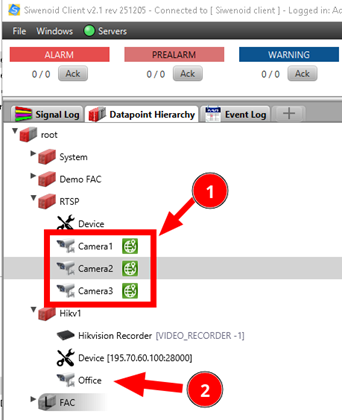
There are two different sources of camera streams in the demo system. (1) Direct camera streams through RTSP protocol. (2) From a Hikvision video recorder through its API. API integration provides more features such as PTZ and preset calls. RTSP can show only live video.
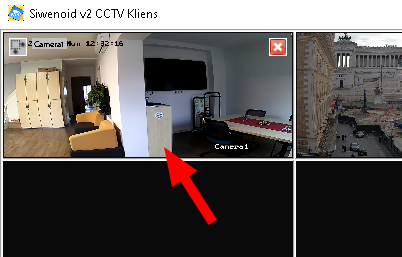
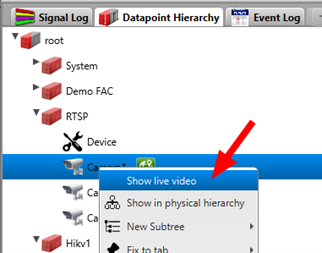
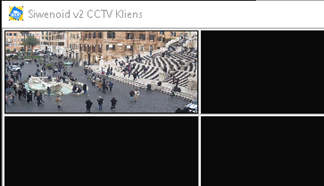
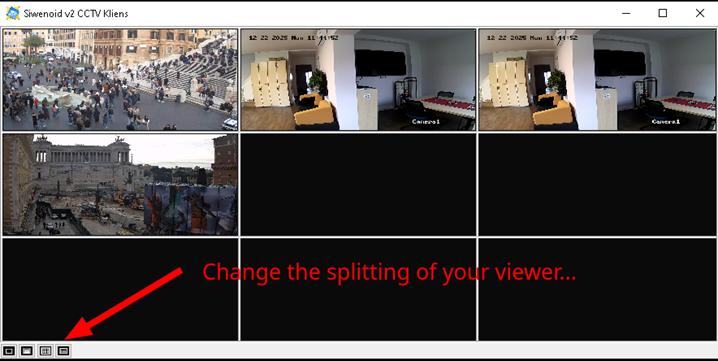
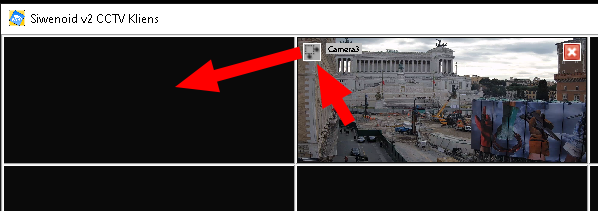
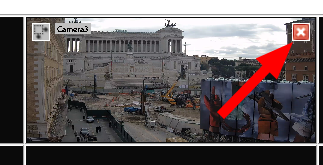
Help: Right-click on a camera and choose Show live video. The video client appears and the live stream is shown. You can also drag and drop a camera to the CCTV viewer. Use the buttons at bottom-left to change the splitting (1-4-9) of the CCTV viewer. For Hikvision cameras use the up-down-left-right buttons to control the camera manually. Use the small icon in the top-left corner of a picture to move it to another cell. Use the close button to close a CCTV picture.
Auto camera in case of alarm
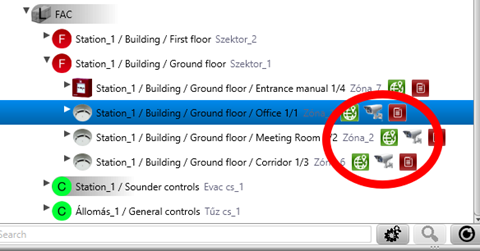
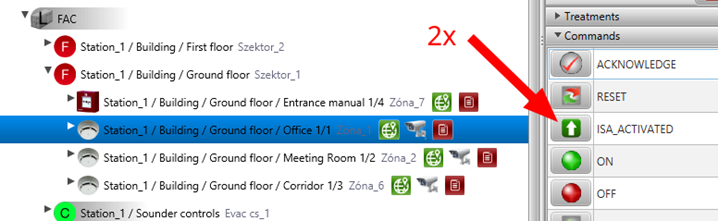
The detectors below have camera assignments. Select a detector and click ISA_ACTIVATED twice. First triggers PREALARM, second triggers ALARM. Check that the associated camera appears automatically in the CCTV viewer.
Help: In the Datapoint Hierarchy right-click on a detector that has a camera assigned. Send ISA_ACTIVATED command twice. Watch the CCTV viewer — the associated camera will appear automatically when ALARM is triggered.