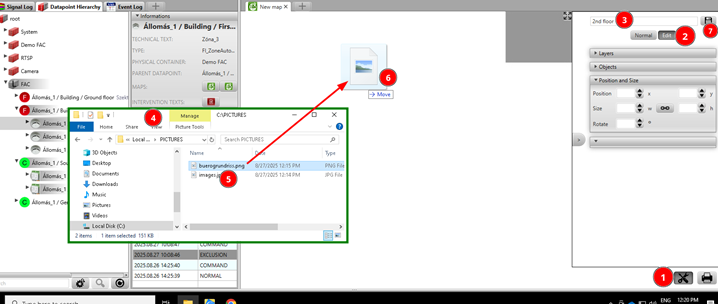
Create a new map
Create a new map and add a background picture.
Help: Go to Maps and click New map. Add a background picture. Don’t forget to Save it when ready!
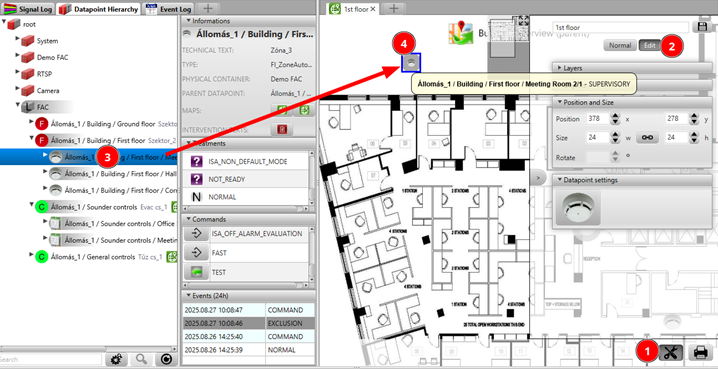
Locate a new datapoint icon on map
Drag and drop a detector from Datapoint Hierarchy to a map.
Help: Open the map and the Datapoint Hierarchy side by side. Find the detector in the hierarchy and drag and drop it onto the map at the desired location.
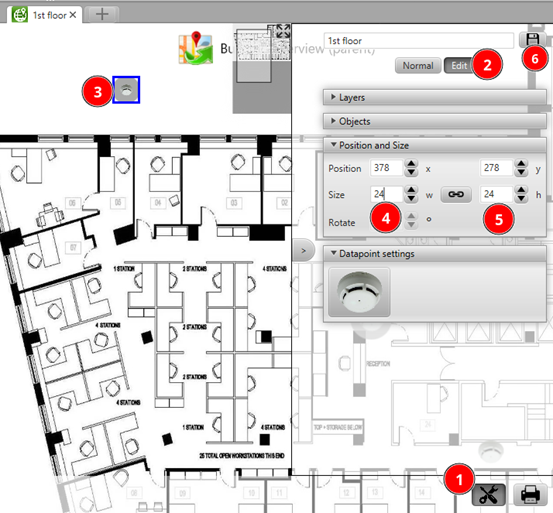
Change the size of an icon
Change the size of a datapoint icon on the map.
Help: Right-click on the icon on the map and select Properties. Type the new size value. Don’t forget to press ENTER after typing the new size value!
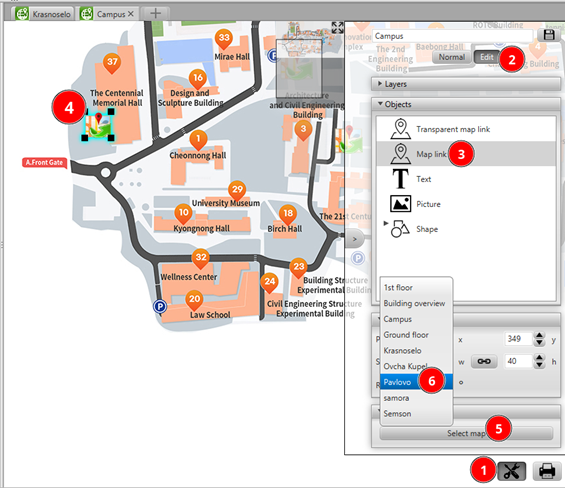
Map link icon
Add a map link icon to a floor plan.
Help: Open the map in edit mode. From the toolbar select the map link icon and place it on the floor plan at the desired location. Save the map when ready.
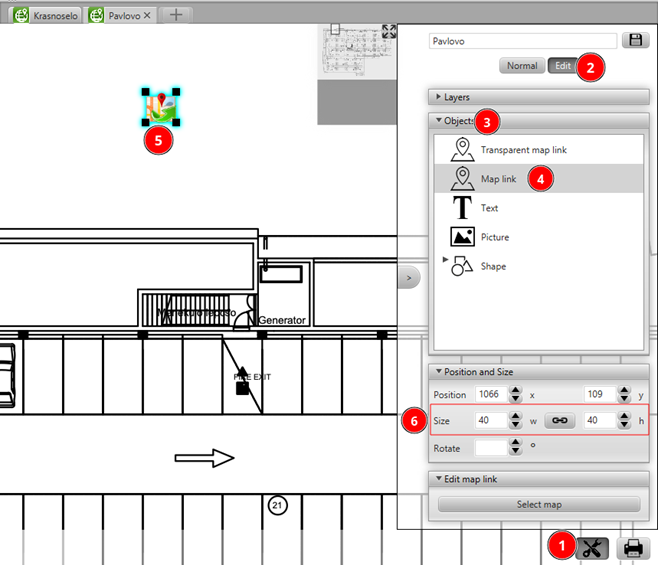
Map link assignment child→parent
Assign a specific map to a map link icon on a floor plan. Let them be in child→parent relation.
Help: Right-click on the map link icon on the floor plan and select Assign map. Select the parent map from the list. Save when ready.
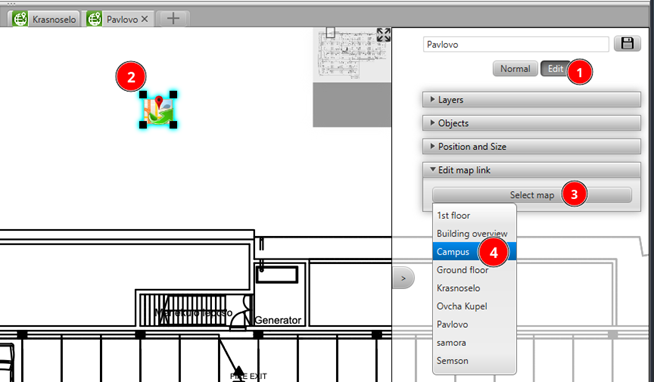
Map link assignment parent→child
Assign a specific map to a map link icon on an overview map. Let them be in parent→child relation.
Help: Right-click on the map link icon on the overview map and select Assign map. Select the child map from the list. Save when ready.